Many businesses struggle with this exact balance. Go too generic, and your open rates tank. Go too manual, and you can't scale past a few hundred contacts. The good news: modern tools let you reach thousands of inboxes while each recipient still sees their own name, company, and relevant details.
Results vary a lot, though. GetResponse's 2024 analysis of over 4.4 billion emails sent in 2023 found personalized content drove a 44.30% open rate versus 39.13% for generic content, but personalized subject lines actually underperformed on clicks. Bulk doesn't have to mean impersonal or spammy, but it does require the right setup.
This guide walks through the exact steps, requirements, key variables, and common mistakes involved in sending personalized bulk email, plus when a managed alternative makes more sense than doing it yourself.
Key Takeaways
- Personalized bulk email combines mass distribution with individual data—name, company, behavior—to boost engagement at scale
- Results hinge on list quality, accurate merge fields, and compliant unsubscribe handling
- You can build campaigns yourself with email marketing software or native mail merge, or let Pipeline Media manage the full campaign for you
How to Send Personalized Bulk Emails (Step-by-Step)
Step 1: Choose Your Sending Method and Set Up Your Account
Your first decision shapes everything downstream. Options include:
- Dedicated email marketing software (Mailchimp, Constant Contact) — best for automation and analytics
- Native mail merge (Gmail, Outlook/Word) — free, but capped and basic
- CRM-based bulk tools — useful if personalization data already lives in your CRM
- Full-service broadcasting provider — hands-off setup and management, where an agency like Pipeline Media manages list hygiene, sending limits, and compliance on your behalf
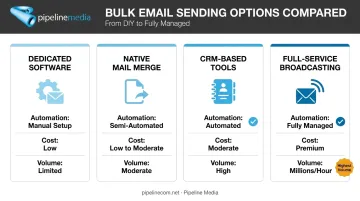
Before sending anything, confirm you have a verified sending domain, understand which regulations apply (CAN-SPAM in the US, CASL in Canada), and know your daily sending limit. Gmail mail merge caps out at 1,500 recipients per day, while Outlook.com allows 5,000 daily recipients for Microsoft 365 subscribers. If your list is bigger than that, you'll need a different tool.
Step 2: Prepare and Import Your Contact List
Your spreadsheet or CSV needs clean columns: email, first name, last name, and any custom fields you'll use for personalization (company, location, purchase history).
Before importing, run these hygiene checks:
- Validate email formats (no typos like "gmial.com")
- Remove duplicate entries
- Strip out bounced or previously unsubscribed contacts
- Confirm consent status for each contact
Mailchimp recommends double opt-in confirmation as a starting standard — a subscriber confirms their email via a verification link before they're added to your active list. This single step prevents a huge share of future bounce and spam-complaint problems.
Step 3: Choose Email Format and Build Your Template
Decide between plain-text and HTML early, because it changes how the email feels.
- Plain-text works better for outreach and one-to-one style messages — it reads like a real person wrote it
- HTML templates work better for newsletters, promotions, and branded announcements
If you go HTML, use a drag-and-drop builder or a pre-built template and customize the colors, logo, and call-to-action to match your brand. Keep the design simple. Overly complex templates often break on mobile clients.
Step 4: Insert Personalization Tags and Segment Your Audience
With your template finalized, it's time to make "bulk" feel individual. Insert merge tags like {FirstName} or {Company} into both the subject line and body copy.
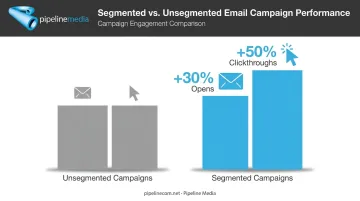
But don't stop at first names. Segmented emails generate 30% more opens and 50% more clickthroughs than unsegmented campaigns, according to HubSpot's marketing data. Build segments based on:
- Purchase history or lifecycle stage
- Geographic location
- Engagement level (active vs. dormant)
- Stated preferences or past behavior
A single "one-size-fits-all" send to your entire list wastes the personalization data you've already collected.
Step 5: Test, Preview, and Send or Schedule
Never skip this step. Send a test email to yourself and a colleague first. Check that:
- Merge tags render correctly (no "Hi {FirstName}" showing up literally)
- Layout looks right on both desktop and mobile
- Links and images work
Once it's clean, decide whether to send immediately or schedule for a specific time. If your platform supports it, set up an automated resend to non-openers a few days later with a tweaked subject line.
Step 6: Monitor Performance and Optimize
After sending, track four numbers: open rate, click rate, bounce rate, and unsubscribe rate. These tell you what worked and what didn't.
Use that data to refine your next campaign — adjust subject lines, tighten segments, or add deeper personalization where it's clearly improving results.
When Should You Send Personalized Bulk Emails?
Personalized bulk email is the right tool for:
- Recurring newsletters to an established, opted-in list
- Product announcements and launches
- Promotional offers segmented by customer type
- Re-engagement campaigns targeting dormant contacts
It becomes risky or inefficient when:
- Your list is unverified or purchased rather than permission-based
- The message needs deep one-to-one customization that merge fields can't replicate
- Your send volume exceeds what your in-house tool or team can manage compliantly
When list hygiene, compliance, and deliverability monitoring pile up alongside everything else on your plate, it's time to bring in a managed provider. Pipeline Media's Email Broadcasting service handles the setup, merge fields, and unsubscribe compliance directly, then delivers open and click reports once the campaign runs.
What You Need Before Sending Personalized Bulk Emails
Data and List Requirements
You need a clean, permission-based contact list with accurate, fully populated custom fields for every personalization token you plan to use. A merge field with missing data is worse than no personalization at all. It produces awkward gaps like "Hi ," which instantly signals a sloppy blast.
Platform and Compliance Readiness
Your sending platform needs enough volume capacity for your list size, plus an automatic unsubscribe mechanism built in. You should also understand the compliance basics before launch:
| Requirement | CAN-SPAM (US) | CASL (Canada) |
|---|---|---|
| Consent | Opt-out framework | Express or implied consent required |
| Sender ID | Accurate From/Reply-To info | Sender must be identified |
| Unsubscribe validity | At least 30 days | At least 60 days |
| Suppression deadline | Within 10 business days | Within 10 business days |
Source: FTC CAN-SPAM Compliance Guide
These rules apply whether you send in-house or outsource execution — the legal responsibility stays with you as the sender. That said, a provider like Pipeline Media can manage the unsubscribe system and structure campaigns within current regulations, taking most of that operational weight off your plate.
Key Parameters That Affect Bulk Email Results
Outcomes here hinge on a handful of controllable variables — not luck.
Personalization Depth
Why it matters: Generic blasts get ignored. Deeper personalization, meaning behavior-based content rather than just a first name, actually holds attention.
Impact on performance: GetResponse's 2023 dataset showed personalized content earned 44.30% opens vs. 39.13% for generic content — but personalized subject lines pulled a lower CTR (2.11%) than non-personalized ones (4.23%). The takeaway: test subject-line and body personalization separately. Don't assume either automatically helps every metric.
List Quality and Segmentation
Why it matters: A verified, segmented list reaches real inboxes and relevant people. A messy list reaches spam traps and disengaged addresses.
Impact on performance: Segmented campaigns see 50% more clickthroughs than unsegmented sends, a gap that usually justifies the extra setup time on its own.
Send Time and Frequency
Why it matters: Timing determines whether your email gets seen live or buried under twenty others by the time someone checks their inbox.
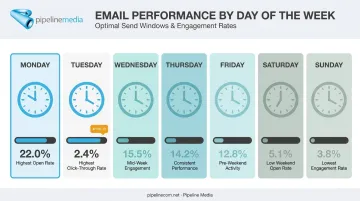
Impact on performance: Campaign Monitor's benchmark of 100 billion+ emails sent in 2021 found Monday produced the highest open rate (22.0%), while Tuesday led on click-through rate (2.4%). Weekend sends trailed both. Midweek, daytime sends are a reasonable starting point — then test against your own list's behavior.
Compliance and Deliverability Setup
Why it matters: Missing an unsubscribe link or triggering spam filters can tank your delivery rates and damage your sender reputation long-term.
Impact on performance: Google recommends keeping spam complaint rates under 0.1%, and warns that senders hitting 0.3% or higher risk losing inbox placement entirely. A working, visible unsubscribe link is a deliverability requirement, not a nice-to-have. This is exactly the kind of ongoing maintenance that full-service email broadcasting providers, including agencies like Pipeline Media, handle on a client's behalf, so compliance doesn't fall through the cracks between campaigns.
Common Mistakes, Troubleshooting, and Alternatives
Common Mistakes to Avoid
- Purchased lists: Sending to unverified contacts instead of permission-based ones tanks deliverability fast
- Generic personalization: Relying only on "Hi {FirstName}" without layering in behavioral or segment data
- Skipped test sends: This lets broken merge tags or formatting errors reach your entire list
Troubleshooting Frequent Issues
Blank or broken merge fields: Set fallback default values (like "there" instead of a blank first name) so gaps in your data don't produce embarrassing results.
High bounce or spam rates: This usually traces back to three things: poor list hygiene, missing sender authentication (SPF, DKIM, DMARC), or spam-trigger content like excessive ALL CAPS and aggressive sales language.
Alternatives to DIY Bulk Email Tools
Native mail merge through Gmail or Outlook is free, but it's built for small-scale sends. You're capped at 1,500 to 5,000 recipients daily depending on the platform, and personalization options are basic — usually just name and maybe one custom field.
Dedicated email marketing software goes further, adding automation, richer segmentation, and real analytics. But someone on your team still has to build the list, configure authentication, and monitor deliverability.
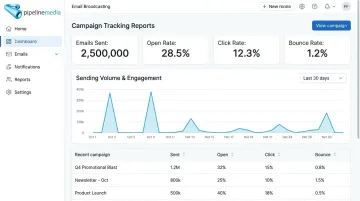
Full-service email broadcasting removes that operational burden from your team's plate. Pipeline Media's managed Email Broadcasting service, for instance, sends millions of emails per hour with extensive merge capabilities for personalization, plus tracking reports showing exactly which emails were opened, which links were clicked, and which addresses bounced. Most jobs go live within 60 to 90 minutes of submission, and the team handles regulatory compliance and unsubscribe management on the client's behalf.
This DIY-versus-managed trade-off matters most for businesses without a dedicated marketing operations person. Pipeline Media clients have reported saving hundreds of dollars per week after switching from in-house tools to a managed provider, with campaigns running faster than before. That kind of result comes from removing platform upkeep from someone's plate, not from a fancier template.
Personalized bulk email succeeds when list quality, personalization depth, and compliance all work together. The real decision isn't whether to personalize — it's whether your team has the time and expertise to manage that in-house, or whether a managed service should take it off your plate.
Frequently Asked Questions
What is considered a bulk email?
A bulk email is a single message sent to a large group of recipients simultaneously, typically with substantively identical content. Common uses include newsletters, promotions, and company announcements.
Can bulk emails really be personalized for each recipient?
Yes. Merge tags pull in each recipient's name, company, or other stored data, while segmentation tailors content to specific groups. Everyone receives the same campaign, but the details displayed differ per person.
How many bulk emails can I send without being marked as spam?
Sending limits vary by platform — Gmail's mail merge caps at 1,500 recipients daily, for example. But list quality and content relevance affect spam flags more than volume does.
What's the difference between mail merge and bulk email marketing software?
Native mail merge (Gmail, Outlook) offers basic text personalization at low volume for free. Dedicated software adds templates, automation, detailed analytics, and much higher sending limits.
Do I need special software to send personalized bulk emails?
Native tools work fine for small lists under a thousand contacts. Growing businesses typically need dedicated software, or a managed service like Pipeline Media's email broadcasting, once volume and personalization needs increase.
How can I avoid my bulk emails landing in spam folders?
Use permission-based lists only, avoid spam-trigger words and ALL CAPS, and always include a clear, working unsubscribe link. Sender authentication (SPF, DKIM, DMARC) matters too at higher volumes.